Autel CAN FD Adapter for GM MY2020 Vehicles, 2026 Newest Compatible with Autel Scanner, Designed to Support Diagnosis of Vehicle Models with CAN FD Protocol
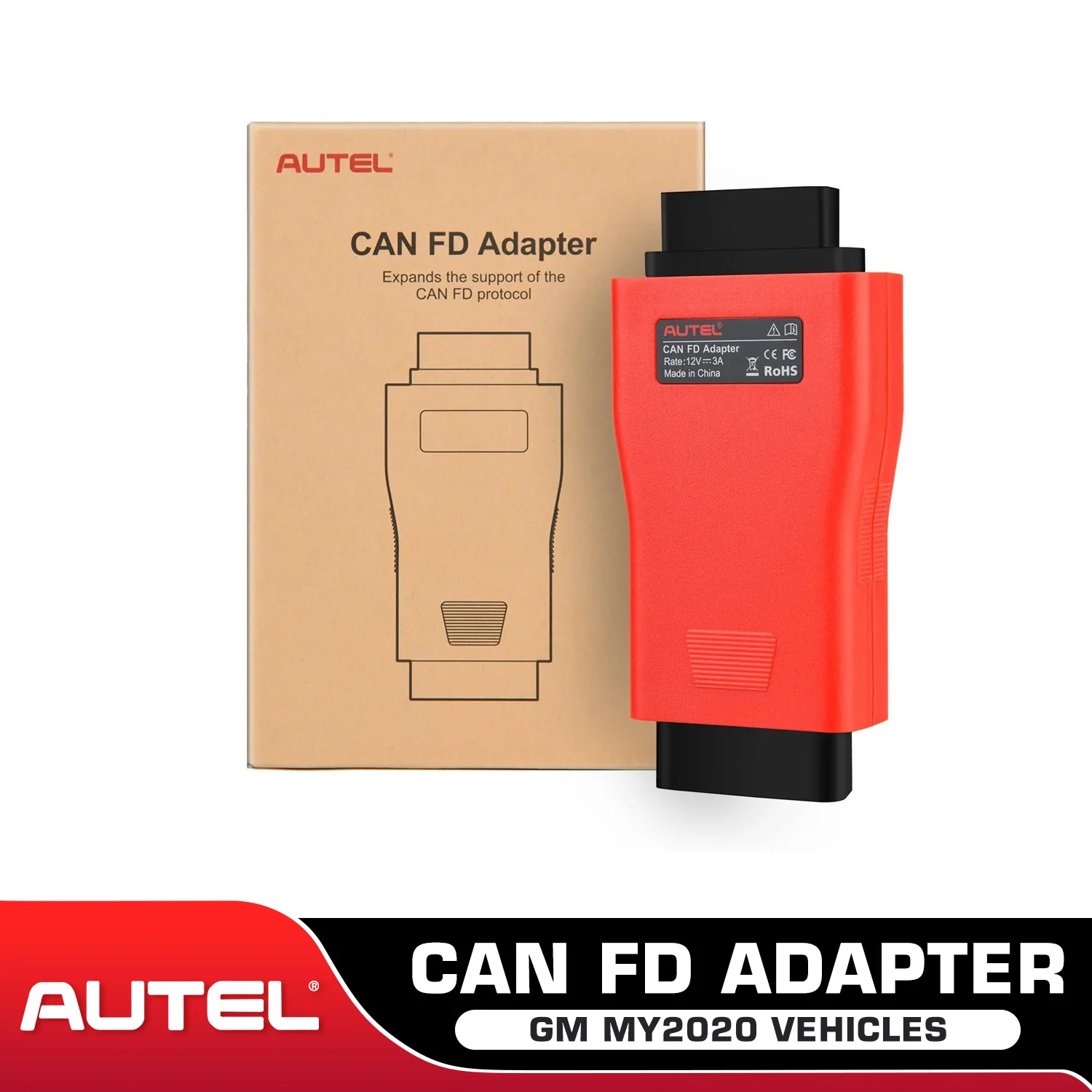
Autel CAN FD Adapter for GM MY2020 Vehicles, 2026 Newest Compatible with Autel Scanner, Designed to Support Diagnosis of Vehicle Models with CAN FD Protocol
Autel CAN FD Adapter - Expands the Support of the CAN FD Protocol

CAN FD Adapter
The Autel CAN FD Adapter is specifically designed to support vehicle models that have a CAN FD protocol, including the newer MY2020 GM models. With this adapter, you can easily diagnose and check your vehicle's performance and systems. It is an essential tool for anyone who owns a newer GM vehicle and wants to ensure that their vehicle is running at its best.

The Autel CAN FD Adapter is designed to connect to compatible vehicle communication interfaces (VCIs) and enable tablets to communicate via the CAN FD (Flexible Data-rate) communications protocol, allowing for easy diagnosis of a vehicle. Many General Motors and Ford 2019 and 2020 vehicles are currently using the CAN FD protocol.
Please note the following:
- The CAN FD Adapter is compatible with the VCI or VCI/J2534 device included with Gen 1 Autel MaxiSys units: MX808, MS905, MS906, MS906BT, MS906TS, MS908, MS908P, and MSELITE.
- The CAN FD Adapter is also compatible with the VCI/J2534 device included with the Gen 2 Autel MaxiSys units: MaxiADAS, MS908S, MS908SP, IM508, and IM608.
- The CAN FD Adapter is not required for Autel Gen 3 units: Ultra, MS919, or MS909.
- The Autel CAN FD Adapter comes with a one-year warranty.
CAN FD Adapter is designed to Work with Autel Scan Tool
The CAN FD Adapter is designed to work with Autel scanner Maxicheck MX808, MaxiCom MK808BT Pro, MK808, MK808S, MK808TS, MX808TS, MP808, MP808BT Pro, MP808BT KIT, MP808S, DS808K, DS708, DS808, DS808TS, DS808S-TS, MP808S-TS, MaxiSys 906 series MS906BT, MS906, MS906TS, MK906 Pro, MK906S Pro, MS908, Maxisys Elite/ Elite 2, MaxiSys 908 series MS908S Pro/ MS908S Pro II, MK908, MK908 II, IM508, IM608, and IM608 Pro etc. to communicate with applicable vehicles.
Compatible with Autel VCI
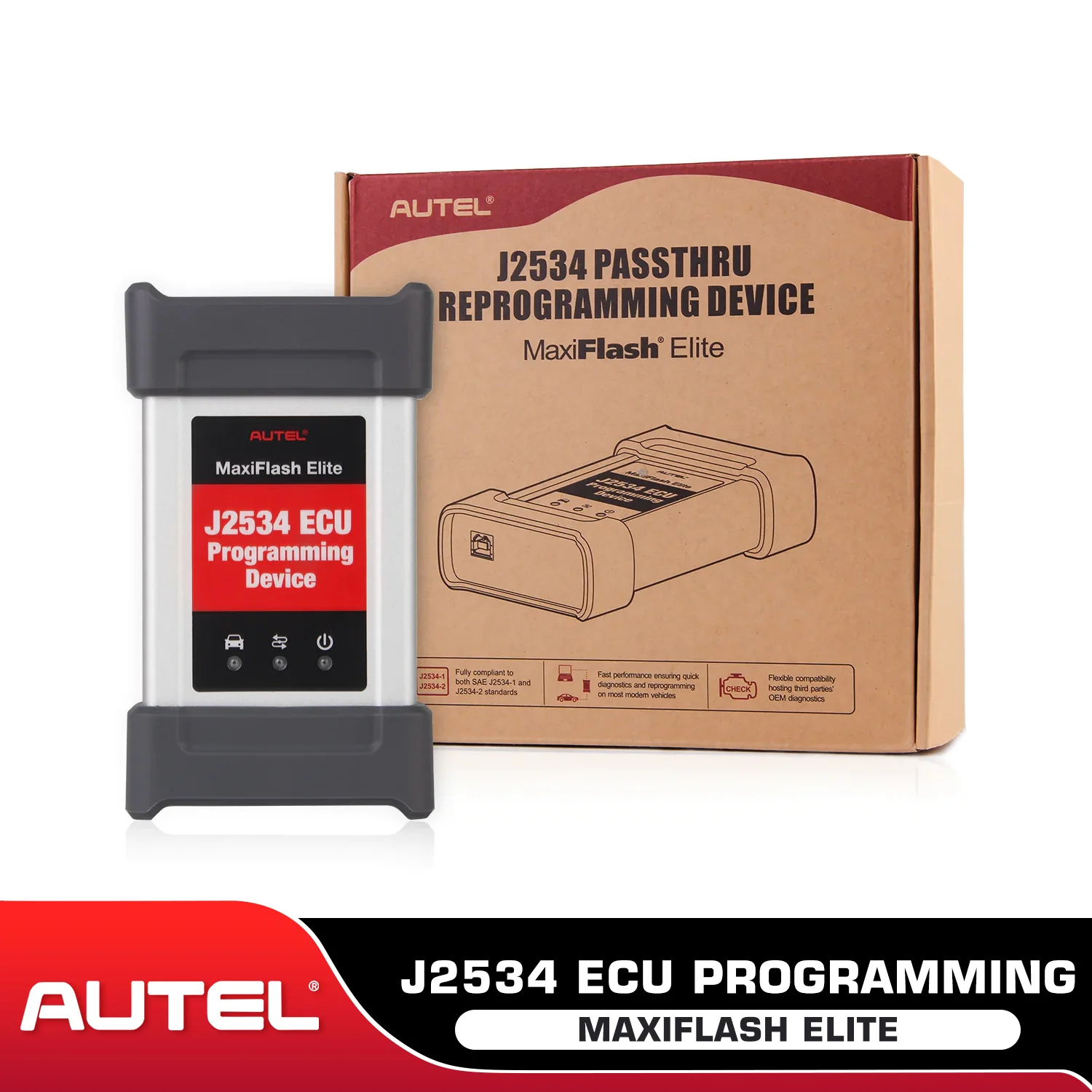
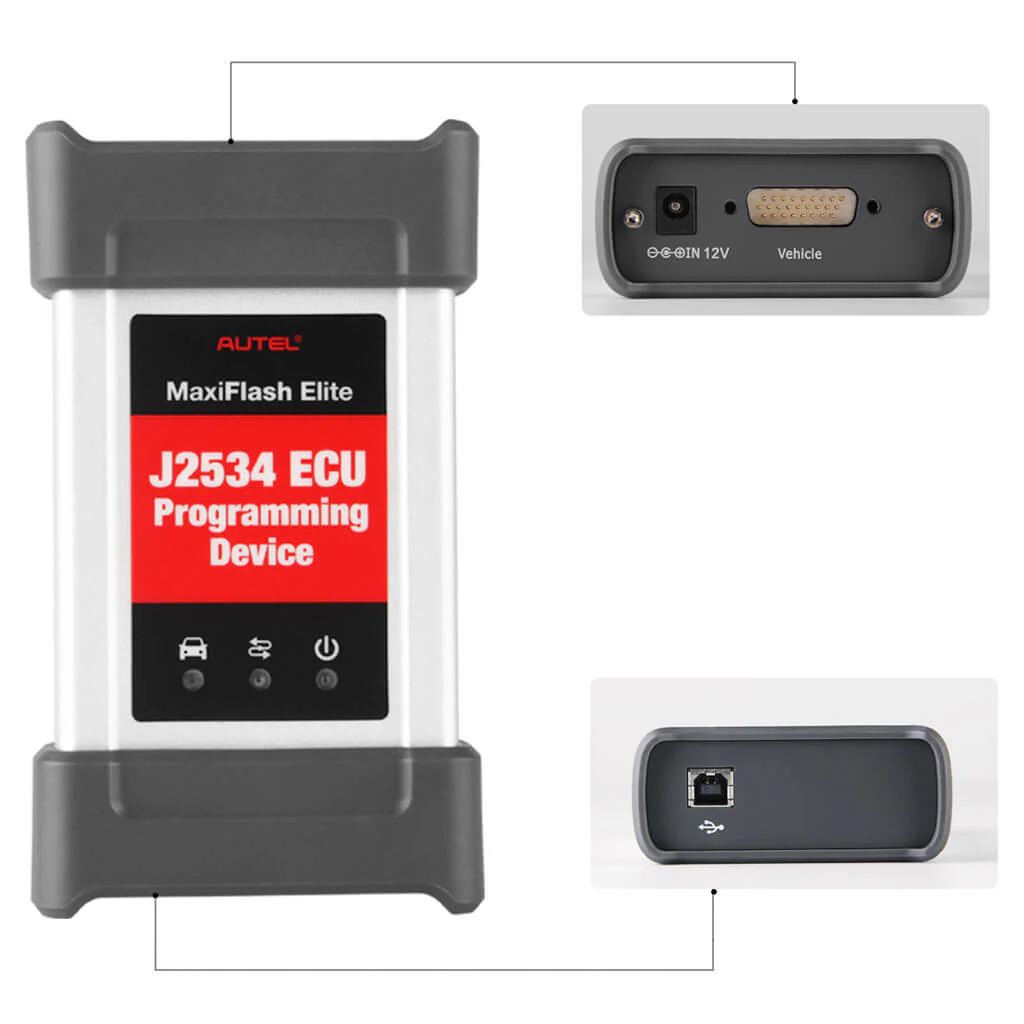
The adapter is compatible with a supported Autel vehicle communication interface (VCI), including Autel's MaxiFlash Elite J2534-VCI, Wireless Diagnostic Interface, VCI 100 and VCI Mini.
Compatible the Following Models
- GM
- 2020+ Corvette
- 2020+ Cadillac CT5
- 2020+ Cadillac CTS4
- 2021+ Large SUVs
- Ford
- 2018+ Expedition/Navigator
- 2018+ EcoSport
- 2019+ Ranger
- 2020+ Transit
- 2019+ Transit Connect
- 2020+ Explorer/Aviator
- 2020+ Super Duty
- 2020+ Escape/Corsair
Portable & Easy to Use

How to Use CAN FD Adapter?
The CAN FD Adapter is designed to be compact, portable, and easy to use. Here are the steps for using it:
Autel MaxiFlash Elite J2534-VCI/ Wireless diagnostic interface:
- Connect the main cable's female adapter to the vehicle's Data Link Connector (DLC) on the VCI unit and tighten the captive (thumb) screws.
- Connect the CAN FD Adapter's 16-PIN female connector to the main cable's male adapter.
- Connect the attached CAN FD Adapter to the vehicle's DLC, which is generally located under the vehicle dashboard.
Autel VCI 100/VCI MINI:
- Connect the CAN FD adapter's 16pin female connector to the vehicle data connecter on the VCI unit.
- Connect the attached CAN FD adapter to the vehicle's DLC.
CAN FD Adapter Features:
- Designed to support diagnosis of vehicle models with CAN FD protocol, including the MY2020 for G-M models.
- Compatible with a supported Autel vehicle communication interface (VCI) to communicate with applicable vehicles.
- Small size and easy to carry, superior flexibility and durability.
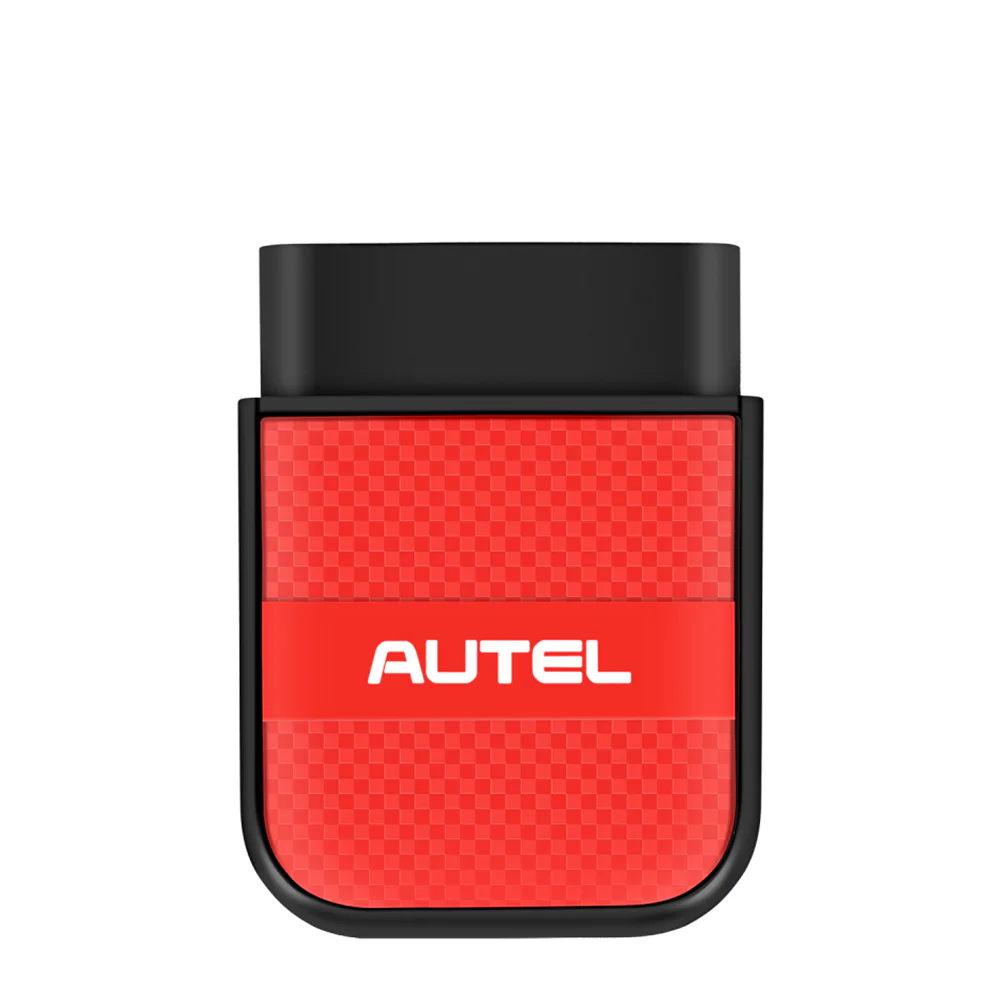
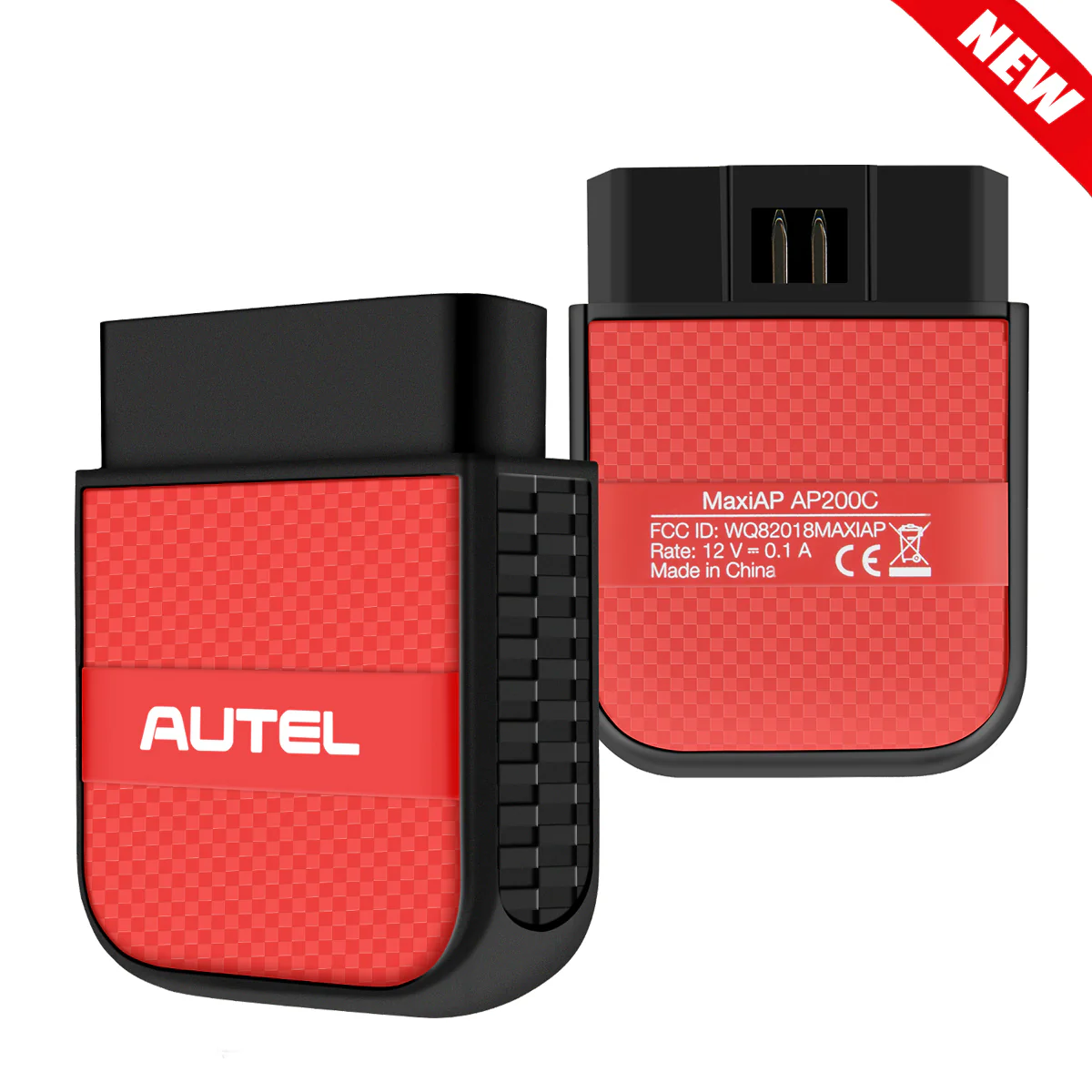
- Cannot work with AP200 or Maxiflash Pro
Important Things
1. The CAN FD Adapter is currently compatible with Autel's MaxiFlash Elite J2534-VCI, Wireless Diagnostic Interface, VCI 100 and VCI Mini.
2. Prior to use, update the VCI with the latest firmware.
To update the VCI, please follow these steps:
- Connect the VCI to a power supply and plug in the MaxiSYS tablet to an electrical outlet.
- Attach the supplied USB cable to the MaxiSYS tablet.
- Tap the VCI icon on the tablet toolbar.
- Next, tap on the VCI firmware version. If an update is available, tap "Update" to install the new version. A progress bar will display as the update is installed.
- Once the update is completed, follow the instructions displayed and reboot the VCI by detaching the USB cable from the VCI and then plugging it back in.
- The tablet will then connect to the VCI. A message will display once the VCI update is completed.
Original: $99.00
-65%$99.00
$34.65Product Information
Product Information
Shipping & Returns
Shipping & Returns
Description
Autel CAN FD Adapter - Expands the Support of the CAN FD Protocol
CAN FD Adapter
The Autel CAN FD Adapter is specifically designed to support vehicle models that have a CAN FD protocol, including the newer MY2020 GM models. With this adapter, you can easily diagnose and check your vehicle's performance and systems. It is an essential tool for anyone who owns a newer GM vehicle and wants to ensure that their vehicle is running at its best.
The Autel CAN FD Adapter is designed to connect to compatible vehicle communication interfaces (VCIs) and enable tablets to communicate via the CAN FD (Flexible Data-rate) communications protocol, allowing for easy diagnosis of a vehicle. Many General Motors and Ford 2019 and 2020 vehicles are currently using the CAN FD protocol.
Please note the following:
- The CAN FD Adapter is compatible with the VCI or VCI/J2534 device included with Gen 1 Autel MaxiSys units: MX808, MS905, MS906, MS906BT, MS906TS, MS908, MS908P, and MSELITE.
- The CAN FD Adapter is also compatible with the VCI/J2534 device included with the Gen 2 Autel MaxiSys units: MaxiADAS, MS908S, MS908SP, IM508, and IM608.
- The CAN FD Adapter is not required for Autel Gen 3 units: Ultra, MS919, or MS909.
- The Autel CAN FD Adapter comes with a one-year warranty.
CAN FD Adapter is designed to Work with Autel Scan Tool
The CAN FD Adapter is designed to work with Autel scanner Maxicheck MX808, MaxiCom MK808BT Pro, MK808, MK808S, MK808TS, MX808TS, MP808, MP808BT Pro, MP808BT KIT, MP808S, DS808K, DS708, DS808, DS808TS, DS808S-TS, MP808S-TS, MaxiSys 906 series MS906BT, MS906, MS906TS, MK906 Pro, MK906S Pro, MS908, Maxisys Elite/ Elite 2, MaxiSys 908 series MS908S Pro/ MS908S Pro II, MK908, MK908 II, IM508, IM608, and IM608 Pro etc. to communicate with applicable vehicles.
Compatible with Autel VCI
The adapter is compatible with a supported Autel vehicle communication interface (VCI), including Autel's MaxiFlash Elite J2534-VCI, Wireless Diagnostic Interface, VCI 100 and VCI Mini.
Compatible the Following Models
- GM
- 2020+ Corvette
- 2020+ Cadillac CT5
- 2020+ Cadillac CTS4
- 2021+ Large SUVs
- Ford
- 2018+ Expedition/Navigator
- 2018+ EcoSport
- 2019+ Ranger
- 2020+ Transit
- 2019+ Transit Connect
- 2020+ Explorer/Aviator
- 2020+ Super Duty
- 2020+ Escape/Corsair
Portable & Easy to Use
How to Use CAN FD Adapter?
The CAN FD Adapter is designed to be compact, portable, and easy to use. Here are the steps for using it:
Autel MaxiFlash Elite J2534-VCI/ Wireless diagnostic interface:
- Connect the main cable's female adapter to the vehicle's Data Link Connector (DLC) on the VCI unit and tighten the captive (thumb) screws.
- Connect the CAN FD Adapter's 16-PIN female connector to the main cable's male adapter.
- Connect the attached CAN FD Adapter to the vehicle's DLC, which is generally located under the vehicle dashboard.
Autel VCI 100/VCI MINI:
- Connect the CAN FD adapter's 16pin female connector to the vehicle data connecter on the VCI unit.
- Connect the attached CAN FD adapter to the vehicle's DLC.
CAN FD Adapter Features:
- Designed to support diagnosis of vehicle models with CAN FD protocol, including the MY2020 for G-M models.
- Compatible with a supported Autel vehicle communication interface (VCI) to communicate with applicable vehicles.
- Small size and easy to carry, superior flexibility and durability.
- Cannot work with AP200 or Maxiflash Pro
Important Things
1. The CAN FD Adapter is currently compatible with Autel's MaxiFlash Elite J2534-VCI, Wireless Diagnostic Interface, VCI 100 and VCI Mini.
2. Prior to use, update the VCI with the latest firmware.
To update the VCI, please follow these steps:
- Connect the VCI to a power supply and plug in the MaxiSYS tablet to an electrical outlet.
- Attach the supplied USB cable to the MaxiSYS tablet.
- Tap the VCI icon on the tablet toolbar.
- Next, tap on the VCI firmware version. If an update is available, tap "Update" to install the new version. A progress bar will display as the update is installed.
- Once the update is completed, follow the instructions displayed and reboot the VCI by detaching the USB cable from the VCI and then plugging it back in.
- The tablet will then connect to the VCI. A message will display once the VCI update is completed.